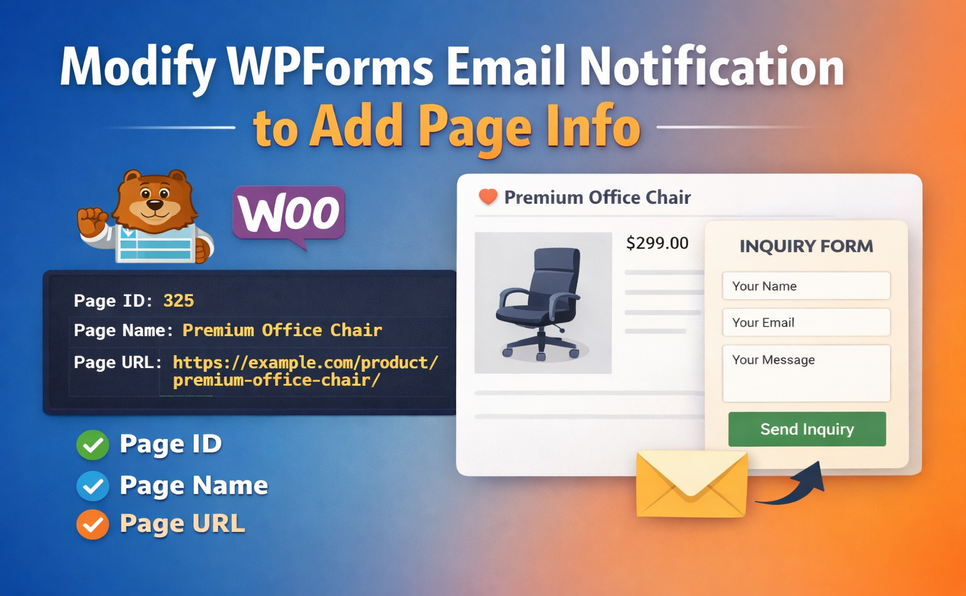
By default, WPForms email notifications only contain the submitted form fields. However, in many cases it is useful to know which page the form was submitted from.
For example:
- A contact form used on multiple pages
- A support form placed across different sections of a website
- A quote request form on landing pages
- Product inquiry forms on WooCommerce product pages
Knowing the Page ID, Page Name, and Page URL gives you better context for each submission.
Fortunately, WPForms already stores the page ID where the form is loaded using a hidden field called page_id. We can use this value to retrieve page information and append it to the email notification.
In this tutorial, we will use the wpforms_emails_notifications_message filter to modify the email content before it is sent.
Step 1: Add a Filter to Modify the Email Message
Add the following code to your theme’s functions.php file or inside a custom plugin.
add_filter( 'wpforms_emails_notifications_message', 'wapcm_modify_wpforms_email_message', 10, 3 );

function wapcm_modify_wpforms_email_message( $message, $email, $formObj ) {

	$page_id = $formObj->form_data['entry_meta']['page_id'];
	if ( empty( $page_id ) ) {
		return $message;
	}

	$page = get_post( $page_id );

	if ( ! $page ) {
		return $message;
	}

	$page_name = $page->post_title;
	$page_url  = get_permalink( $page_id );

	$page_info = "<p>Page ID: " . $page_id . "</p>";
	$page_info = "<p>Page Name: " . $page_name . "</p>";
	$page_info .= "<p>Page URL: " . $page_url . "</p>";

	return $message . $page_info;

}
Step 2: How the Code Works
Hook into the WPForms Email Notification
The filter:
wpforms_emails_notifications_messageallows you to modify the email notification message before it is sent.
This makes it easy to add extra information to the email content.
Retrieve the Page ID
WPForms automatically stores the page ID where the form is loaded.
$page_id = $formObj->form_data['entry_meta']['page_id'];If the page ID is empty, the function simply returns the original message.
Retrieve Page Information
Using the page ID, we retrieve the page details using the WordPress function:
$page = get_post( $page_id );From this page object we can get:
- Page title
- Page URL
Append Page Information to the Email
Finally, we append the page details to the original email message.
Example email output:
Name: John Doe
Email: john@example.com
Message: Hello, I have a question.

Page ID: 125
Page Name: Contact Page
Page URL: https://example.com/contact
Now every notification email includes the page where the form was submitted.
Very Useful for WooCommerce Product Inquiry Forms
This method becomes especially useful when WPForms is used on WooCommerce product pages.
Many stores add forms such as:
- Product inquiry forms
- Request a quote forms
- Ask a question forms
- Bulk order request forms
When a visitor submits the form, it is extremely helpful to know which product page the inquiry came from.
Since WPForms stores the page ID where the form is displayed, the code above will automatically capture that information.
Example email output:
Name: Sarah
Email: sarah@example.com
Message: Can I order this product in bulk?

Page ID: 325
Page Name: Premium Office Chair
Page URL: https://example.com/product/premium-office-chair/
This makes it easy to immediately identify which product the customer is asking about, without adding extra fields to the form.
Real Example: Using This with a Catalog Mode WooCommerce Store
This approach is used in the plugin: Product Catalog Mode For WooCommerce
This plugin allows you to convert WooCommerce into a catalog or quote-based store by:
- Hiding the Add to Cart button
- Hiding product prices
- Replacing purchase options with inquiry or quote forms
- Enabling catalog mode for specific time periods
- Excluding specific categories or tags
When catalog mode is enabled, the plugin can display a WPForms inquiry form directly on the WooCommerce product page.
When a customer submits the form:
- The form is loaded on the product page
- WPForms captures the page ID
- The code shown in this tutorial appends the product page information to the email notification
This means the store owner receives inquiry emails that clearly show which product the customer is interested in, making it much easier to manage product inquiries and quote requests.
Final Thoughts
Adding page information to WPForms email notifications is a simple but powerful customization.
It becomes especially useful when:
- The same form appears on multiple pages
- You run marketing landing pages
- Forms are used on WooCommerce product pages
- Your store receives product inquiries or quote requests
With just a small code snippet, you can improve the context and usefulness of every WPForms email notification.
FAQ
Frequently Asked Questions
You can modify WPForms email notifications by using WordPress filters such as wpforms_emails_notifications_message. This allows you to alter the message content before the email is sent.
Yes. WPForms can capture page information like the page ID, title, or URL using hidden fields or smart tags.
Including page information helps you understand where the form was submitted from, which is useful when the same form appears on multiple pages or WooCommerce product pages.
Yes. If a form is placed on a WooCommerce product page, the captured page information will correspond to the product page, allowing you to identify which product the inquiry relates to.
Catalog or quote-based stores often use inquiry forms instead of Add to Cart buttons. When a customer submits the form, including the page information in the email helps identify which product the customer is interested in.
Plugins to Enhance Your WooCommerce Store
Carefully selected tools to help you customize, manage, and optimize your WooCommerce experience.
Woo Parent Category Selector
- Automatically assign parent categories when child categories are selected
- Prevent accidental removal of required parent categories
- Automatically repairs missing parent category assignments during product save
- Bulk repair existing WooCommerce product category structures
- Keeps product category structures organized and consistent
Product Catalog Mode For WooCommerce
- Turn your WooCommerce store into catalog mode instantly
- Hide Add to Cart buttons and product prices conditionally
- Apply rules by user role, country, or scheduled time periods
- Display custom messages and inquiry options for products
- Control visibility settings globally or per product

Remove Add to Cart Button for WooCommerce
- Remove Add to Cart buttons from shop and product pages
- Hide buttons conditionally for selected products or categories
- Replace Add to Cart with custom text or messages
- Control button visibility by user role and product type
- Lightweight settings interface with easy customization

Remove Product Content for WooCommerce
- Hide product title, image, price, rating, and descriptions
- Remove tabs, meta information, SKU, tags, and related products
- Control visibility separately for shop and single product pages
- Customize WooCommerce layouts without coding
- Enable or disable content elements with simple settings

Really Simple XML and HTML Sitemap
- Generate both XML and HTML sitemaps automatically
- Display sitemaps anywhere using ShortCode support
- Include pages, posts, and custom post types
- Exclude selected pages or posts easily
- Supports WPML and Polylang multilingual plugins