What Is the WordPress Transients API?
Before starting with WordPress Transients API, let’s talk about the meaning of Transients. It means some things remain in a place for only a short time. In our case, we can store data in the database temporarily.
When Should You Use the Transients API?
Using WordPress Transients API, we can use wp_options database table to temporarily store cached information in a simple and standardized way by giving a custom name and a time frame after which it will expire and be deleted.
Transients API is very similar to the Options API, but the difference is it added the feature of an expiration time.
So, anyone who needs to cache specific data but wants it refreshed within a given time can use the WordPress Transients API.
Common Transients API Functions
We can use Transients API functions to store and retrieve information from the database.
Set/Get Transient:
- set_transient() – Store Cached Data
- get_transient() – Retrieve Cached Data
- set_site_transient() – Stores cached data network-wide
- get_site_transient() – retrieve a network-wide transient
Delete Transient:
- delete_transient() – Remove Cached Data
- delete_site_transient() – remove a network-wide transient
The “site_” functions work network-wide when using WordPress Multisite.
How the WordPress Transients API Works
Let’s see how we can save and fetch Transients, and where we can use them with a real example:
Before going to the example, we need to understand the parameters of set_transient() API function.
set_transient( $transient, $value, $expiration );You can see more details about the parameters here.
Let’s see a real example where we can use WordPress Transients API.
Suppose you have a website built with WordPress. On your home page, there is a section that shows the 5 latest articles. We can do a query like this :
$args = array(
	'post_type' => 'post',
	'post_status' => 'publish',
	'posts_per_page'=> 5,
);

$latest_articles = new WP_Query( $args );

// The Loop
if ( $latest_articles->have_posts() ) {
	echo '<ul>';
	while ( $latest_articles->have_posts() ) {
		$latest_articles->the_post();
		echo '<li>' . get_the_title() . '</li>';
	}
	echo '</ul>';
} else {
	// no posts found
}
/* Restore original Post Data */
wp_reset_postdata();
Do you see that when browsing the home page, the query is executed every time to fetch the latest posts—even if you add a new article only once every five years? Isn’t this the wrong way to fetch the latest posts? Doesn’t it make your site slow?
WordPress Transients API comes to solve this problem. We can save the above query in our wp_options table for a certain period of time and can call it from wp_options table when needed like below:
if ( false === ( $latest_articles = get_transient( 'wa_latest_articles' ) ) ) {
	$latest_articles = new WP_Query(
		array(
			'post_type' => 'post',
			'post_status' => 'publish',
			'posts_per_page'=> 5,
		)
	);

	// Put the results in a transient. Expire after 1 week.
	set_transient( 'wa_latest_articles', $latest_articles, WEEK_IN_SECONDS );
}

if ( $latest_articles->have_posts() ) {
	echo '<ul>';
	while ( $latest_articles->have_posts() ) {
		$latest_articles->the_post();
		echo '<li>' . get_the_title() . '</li>';
	}
	echo '</ul>';
} else {
	// no posts found
}
wp_reset_postdata();
Here WEEK_IN_SECONDS is a time constant. In WordPress 3.5, several constants were introduced to express time easily:
MINUTE_IN_SECONDS  = 60 (seconds)
HOUR_IN_SECONDS    = 60 * MINUTE_IN_SECONDS
DAY_IN_SECONDS     = 24 * HOUR_IN_SECONDS
WEEK_IN_SECONDS    = 7 * DAY_IN_SECONDS
MONTH_IN_SECONDS   = 30 * DAY_IN_SECONDS
YEAR_IN_SECONDS    = 365 * DAY_IN_SECONDS
Here, there is a problem with the expiration time. As you can see, I set it to 1 week. This would be appropriate if you don’t mind your new article appearing a week after it is added to your site.
If you want to make sure that the article shows up immediately, then I suggest adding a large expiration time( YEAR_IN_SECONDS ). Then create a function to flush your transient when a new article is published.
add_action( 'publish_post', 'wa_flush_latest_articles_transient' );

function wa_flush_latest_articles_transient( $post_id, $post ){
	delete_transient( 'wa_latest_articles' );
}
Plugins to Enhance Your WooCommerce Store
Carefully selected tools to help you customize, manage, and optimize your WooCommerce experience.
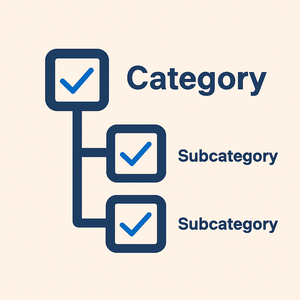
Woo Parent Category Selector
- Automatically assign parent categories when child categories are selected
- Prevent accidental removal of required parent categories
- Automatically repairs missing parent category assignments during product save
- Bulk repair existing WooCommerce product category structures
- Keeps product category structures organized and consistent

Product Catalog Mode For WooCommerce
- Turn your WooCommerce store into catalog mode instantly
- Hide Add to Cart buttons and product prices conditionally
- Apply rules by user role, country, or scheduled time periods
- Display custom messages and inquiry options for products
- Control visibility settings globally or per product

Remove Add to Cart Button for WooCommerce
- Remove Add to Cart buttons from shop and product pages
- Hide buttons conditionally for selected products or categories
- Replace Add to Cart with custom text or messages
- Control button visibility by user role and product type
- Lightweight settings interface with easy customization

Remove Product Content for WooCommerce
- Hide product title, image, price, rating, and descriptions
- Remove tabs, meta information, SKU, tags, and related products
- Control visibility separately for shop and single product pages
- Customize WooCommerce layouts without coding
- Enable or disable content elements with simple settings

Really Simple XML and HTML Sitemap
- Generate both XML and HTML sitemaps automatically
- Display sitemaps anywhere using ShortCode support
- Include pages, posts, and custom post types
- Exclude selected pages or posts easily
- Supports WPML and Polylang multilingual plugins